
CC Switch Integration Guide
Use CC Switch desktop tool to one-click import 块乐Encore configuration into Claude Code, Codex, Gemini CLI, and more.
Why CC Switch?
Modern AI coding relies on CLI tools like Claude Code, Codex, Gemini CLI, OpenCode, and OpenClaw — but each tool has its own configuration format. Switching API providers means manually editing JSON, TOML, or .env files, with no unified way to manage MCPs and SKILLS across multiple tools.
CC Switch provides a desktop app to manage all five CLI tools. Instead of manually editing configuration files, you get a visual interface to one-click import providers, switch between them, with 50+ built-in provider presets, unified MCP/SKILLS management, and system tray instant switching — all backed by a reliable SQLite database with atomic writes to protect your configuration.
CC Switch Tutorial
1. Download CC Switch
Download URL:
https://github.com/farion1231/cc-switch/blob/main/README_ZH.md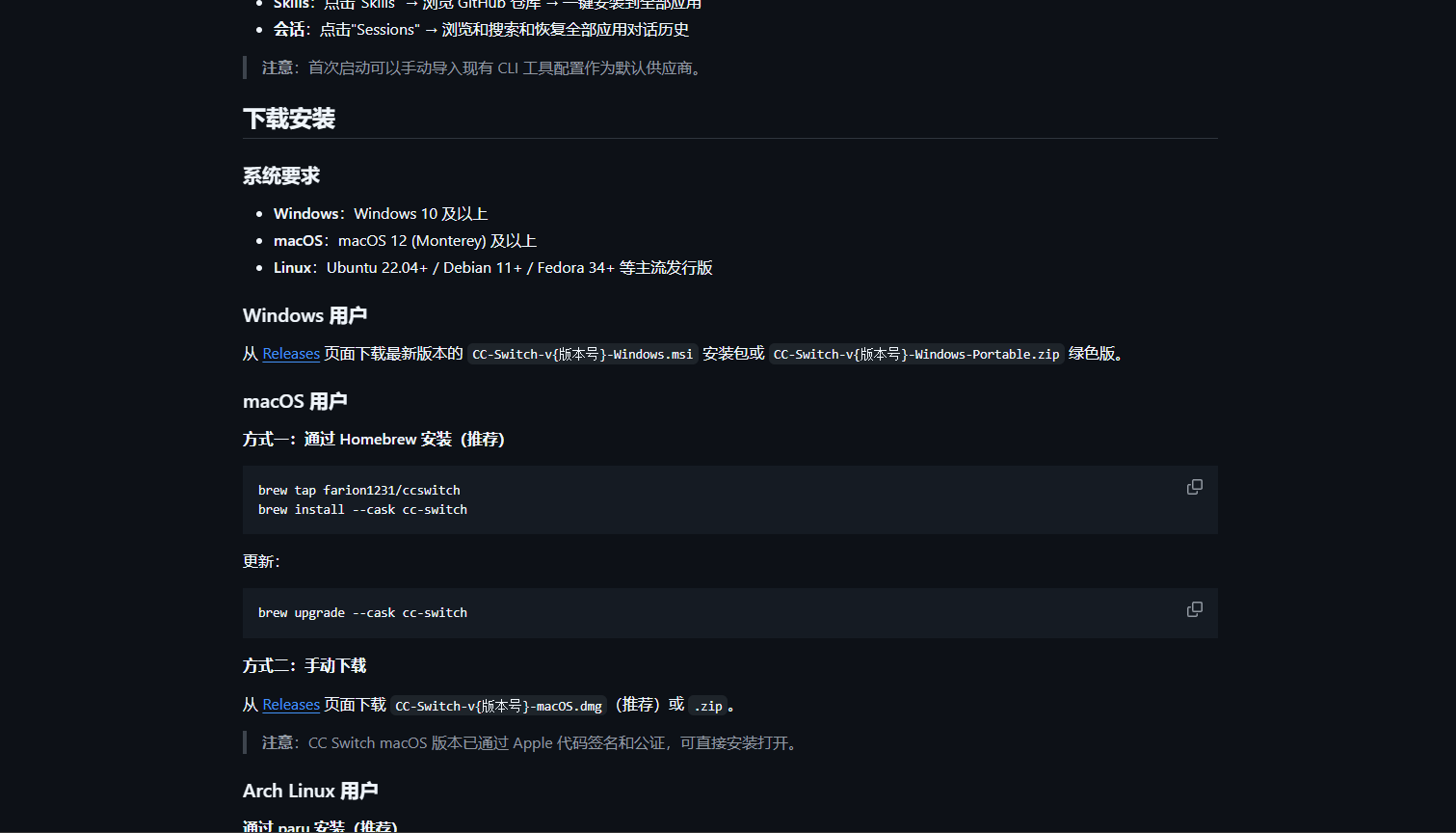
Manual download: Pick a version from the Releases page (this demo uses Windows). Recommended: CC-Switch-v3.14.1-Windows.msi
https://github.com/farion1231/cc-switch/releases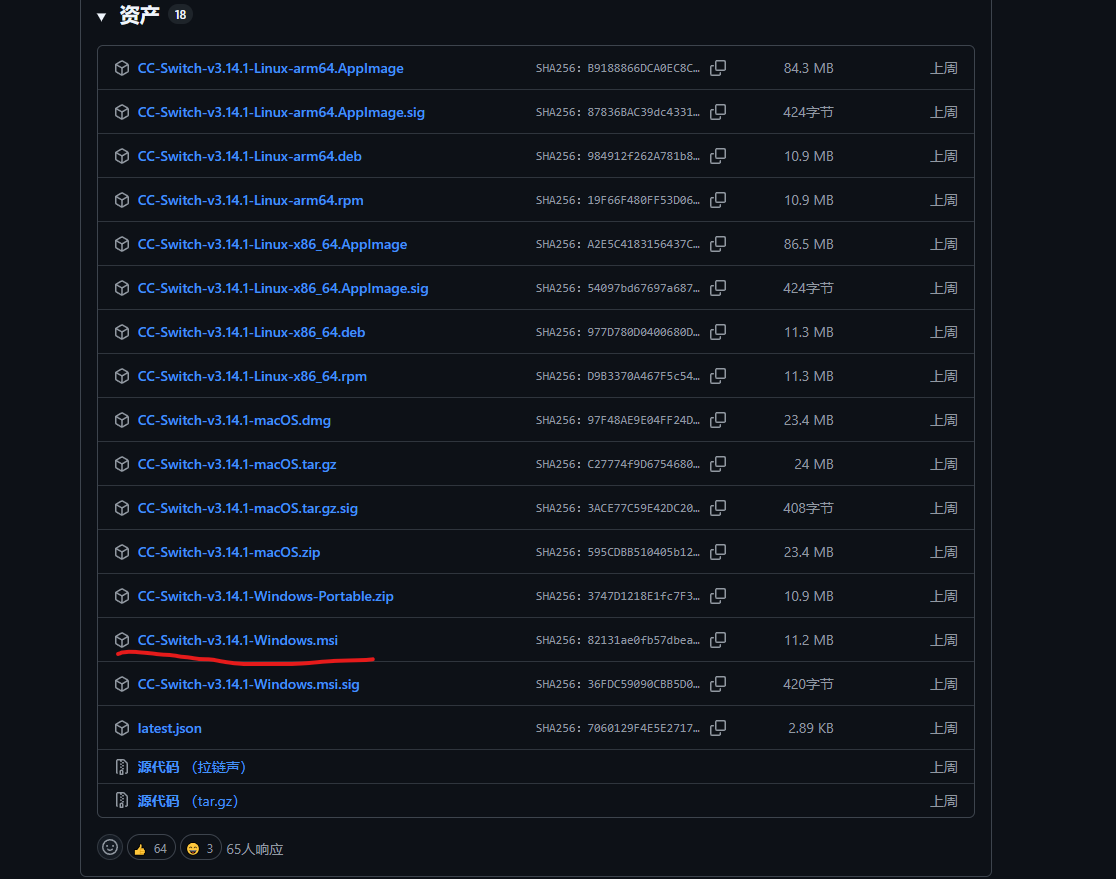
2. Create an API Key on 块乐Encore
Once CC Switch is installed, go back to the 块乐Encore website.
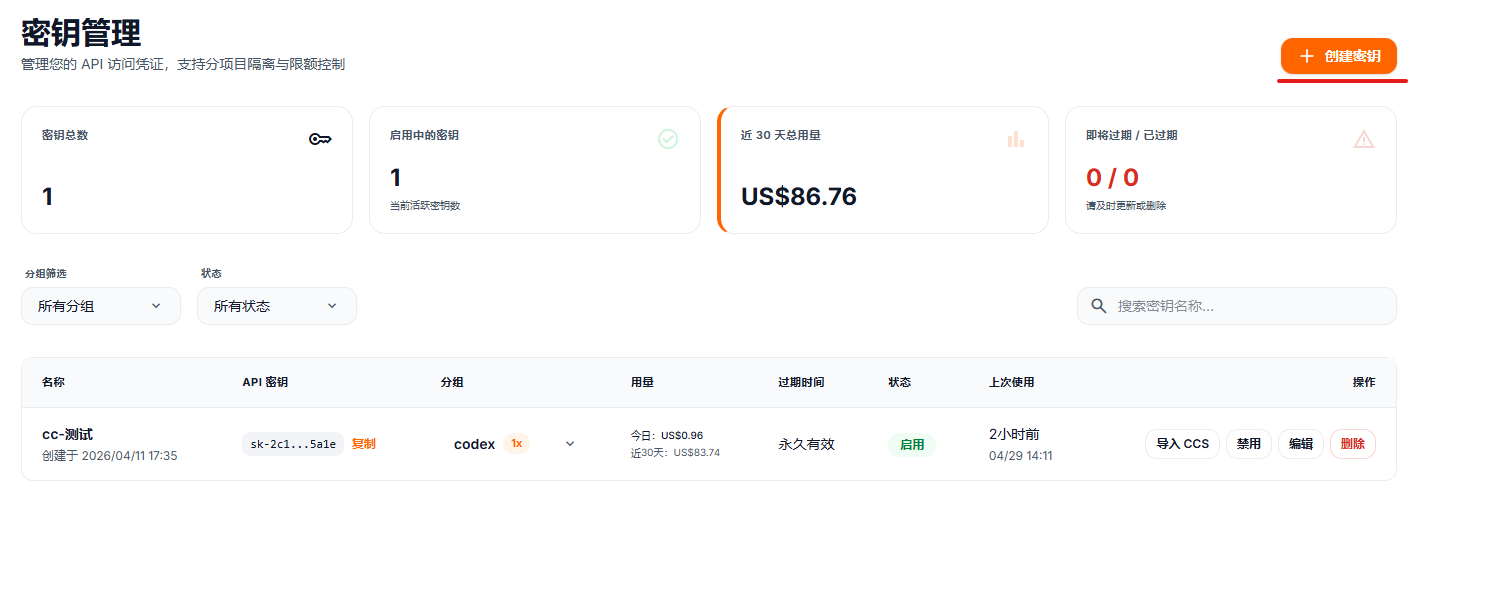
Step 1: Create an API Key
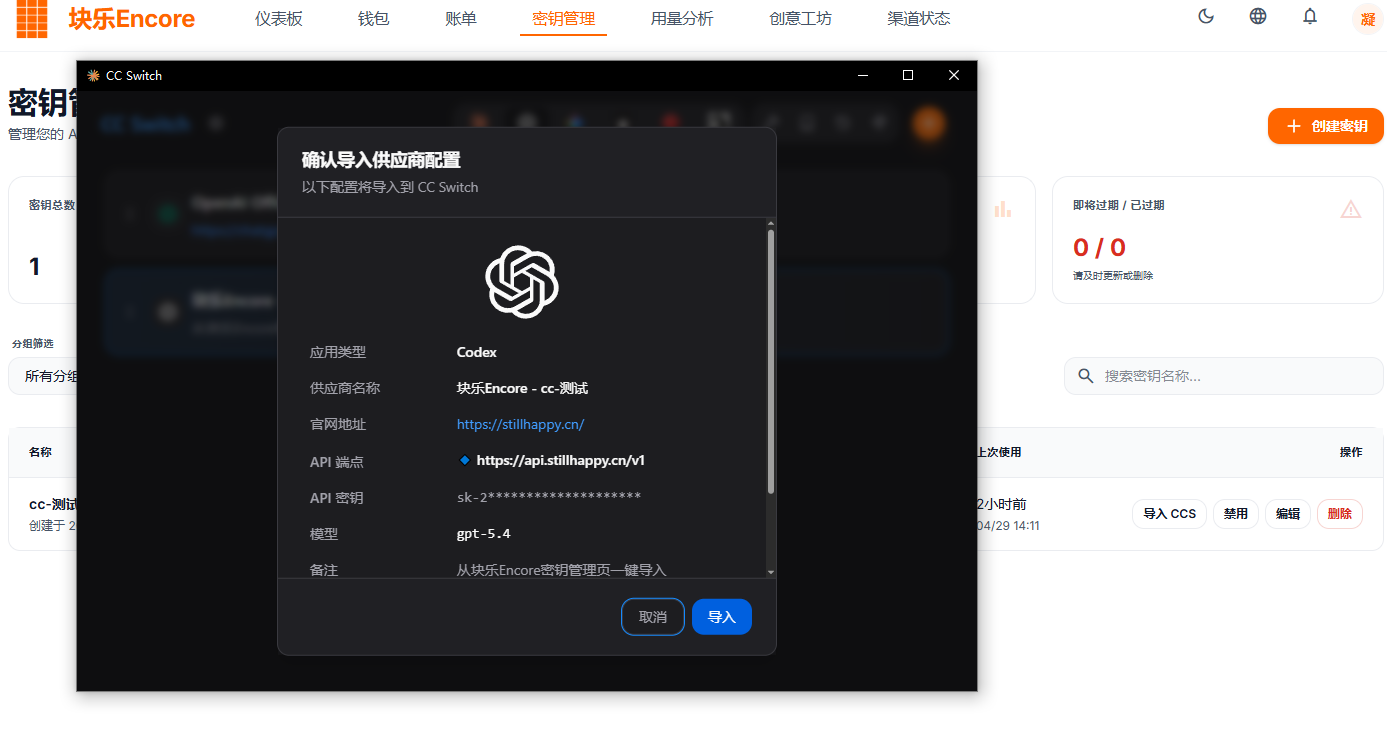
Step 2: Click "Import CCS" and select the tool you want to configure
The website currently supports Claude Code / Codex / Gemini.
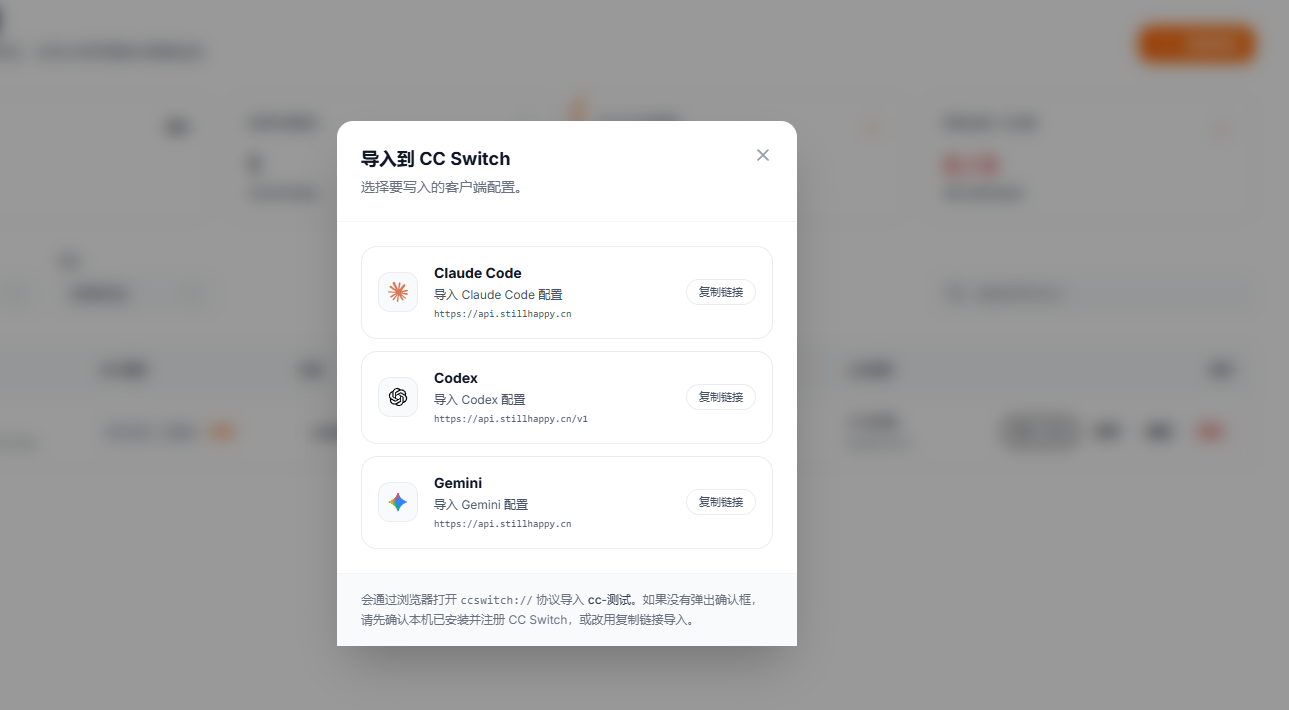
Step 3: One-click import
3. Supported Tools
CC Switch supports five tools:
- Claude Code
- Codex
- Gemini CLI
- OpenCode
- OpenClaw
Each tool has dedicated provider presets and configuration management. Users can also add their own tools.
If you prefer not to use CC Switch, refer to:
Contact
For issues or further assistance, please email:
aiencore@stillhappy.cn